How to link your Instagram to TikTok for professional creator profiles
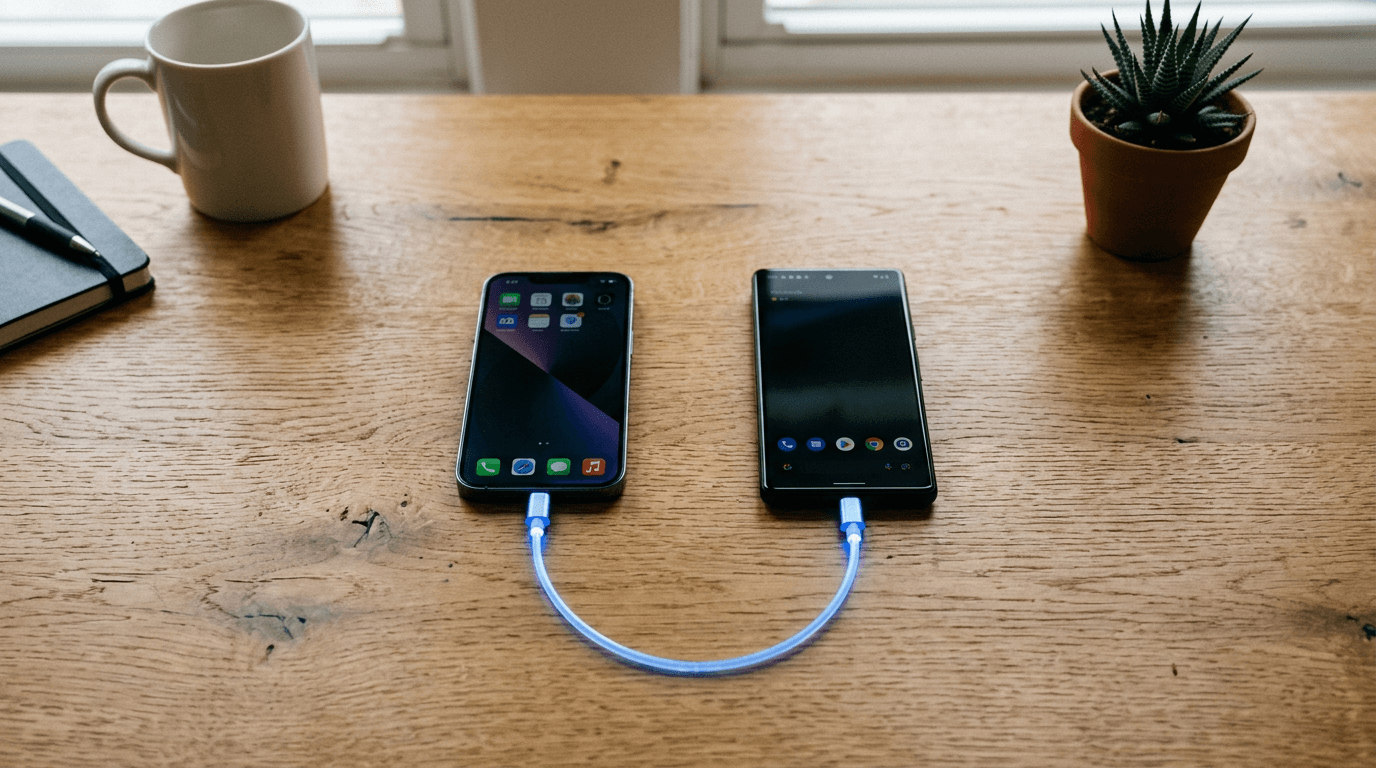
You have just watched a short-form video go viral, racking up half a million views in a single afternoon. Thousands of viewers are tapping through to your profile to find out more about your brand. If those users cannot click straight through to your wider portfolio, storefront, or secondary social channels, that surge of traffic bounces back into the feed and disappears completely. Understanding exactly how to link your instagram to tiktok prevents that drop-off and secures the audience you worked hard to earn.
Quick Summary
Connecting your Meta and ByteDance profiles consolidates your audience and drives short-form video viewers directly toward your primary conversion channels. By utilizing native integration buttons and centralized smart links, professional creators ensure high-intent profile visitors can easily navigate their digital ecosystem.
- Upgrade to a Business Account to unlock advanced profile linking features.
- Authorize the native social button to create a frictionless transition between apps.
- Deploy a consolidated landing page in the dedicated website field to house multiple destinations.
- Monitor cross-platform click-through rates using built-in profile analytics.
Table of Contents
- 1. Switch to a Business Account
- 2. Authorize the native integration
- 3. Place a consolidated URL in the website field
- 4. Route traffic backward from Meta
- 5. Audit your cross-platform analytics
- Common Pitfalls & Troubleshooting
- FAQ
- Recommended Reads
1. Switch to a Business Account
Follower thresholds dictate your linking options
Before you can manipulate the primary link fields on your profile, you must understand how platform restrictions govern outbound traffic. The platform intentionally limits external linking to prevent automated spam and keep users inside the native ecosystem. On a standard personal account, the system locks the dedicated website field entirely until your profile reaches exactly 1,000 followers.
You can bypass this specific follower requirement by converting your personal profile into a Business Account. This requires navigating to your profile settings, selecting "Account," and choosing "Switch to Business Account." The application will prompt you to select an industry category and, depending on your geographic region, may require formal business registration details to finalize the process.
The critical mistake creators make here is treating the account switch as a cost-free workaround. Upgrading to a Business Account immediately strips your profile of access to the platform's General Commercial Audio Library. If your content relies heavily on trending, copyrighted music, switching accounts will result in muted videos and heavily suppressed reach. You must weigh the commercial value of an immediate outbound link against the loss of popular audio assets. If you realize you need the commercial audio library after making the switch, you can revert to a personal account in the same settings menu. However, doing so instantly strips the website link field from your profile again, and any URL you had placed there will be deleted. You cannot game the system by switching, dropping a link, and switching back.
2. Authorize the native integration

The built-in social button captures immediate attention
The platform provides a built-in authorization protocol that places a dedicated camera icon directly next to your "Edit Profile" button. This native integration is entirely separate from the text-based website field and remains available regardless of your follower count or account type. It is the most reliable baseline method for funneling viewers directly to your secondary content.
To activate this pathway, open the "Edit Profile" menu and scroll down to the "Social" section. Select the Meta option, which will launch an OAuth browser window prompting you to log into your secondary account. Once you grant permissions, the platform binds the two accounts, generating the dedicated icon on your public profile. If you are researching how to add your instagram to your tiktok bio, this native button is the very first mechanism you must configure because it requires zero manual maintenance once authorized.
Cached credentials cause the most common error here. The in-app browser automatically logs into the wrong account. Creators authorize the connection, only to realize the button redirects traffic to an old, unused, or private profile. Always clear your mobile device's cache first. Or, verify the exact handle on the login screen before tapping the authorization button. Did you link the wrong account by mistake? Return to the "Social" menu, tap the incorrectly linked handle, select "Unlink," and restart the entire process.
3. Place a consolidated URL in the website field
A single destination prevents audience fragmentation
While the native social button works perfectly for routing users to one specific platform, modern professionals rarely operate a single outbound channel. You likely manage a storefront, a design portfolio, a booking system, and multiple social feeds simultaneously. Relying solely on the built-in button forces your audience to hunt for those secondary links once they arrive on your Meta profile, significantly increasing drop-off rates.
To solve this, you must utilize the dedicated website field. Instead of debating how to put instagram link in tiktok bio alongside your store link, deploy a digital business card or smart link platform. This architectural approach allows you to place one clean, branded URL in your profile that opens a dedicated landing page housing every destination your business operates. When figuring out how to add instagram link to tiktok bio without sacrificing your ecommerce traffic, a centralized landing page is the most effective operational choice.
Practical rule: Never make a user tap more than twice to move from your short-form video to your final checkout or booking page.
When a viewer taps a centralized smart link, the platform's in-app browser loads a mobile-optimized menu of your designated pathways. This infrastructure allows you to track exactly which buttons they interact with after leaving the video feed, giving you actionable data on whether your audience prefers your visual portfolio, your written content, or your direct product listings.
The critical failure in this step is pasting a raw, unformatted URL directly into your profile's text bio rather than the designated website field. Links typed into the standard bio text are entirely unclickable. Users will not memorize and manually type a complex URL into their mobile browser. If your account does not yet have access to the clickable website field, direct users to the native social button instead of cluttering your text bio with dead links.
4. Route traffic backward from Meta
Isolated audiences severely limit your overall reach
Cross-platform growth relies heavily on reciprocal traffic pathways. When a new user discovers your Reels, they might actually prefer consuming content on a different platform. Viewers constantly search for ways to transition between ecosystems, often asking, can you link tiktok to instagram? The answer is yes, and failing to build this reverse pathway means you are running a one-way street that actively bleeds potential audience retention.
To capture this reverse traffic, open your Meta profile, tap "Edit Profile," and navigate to the "Links" section. Select "Add External Link" and input your exact short-form video handle. The platform allows up to five external links natively, meaning you do not have to choose between your storefront and your secondary video feeds.
The mistake professionals make here is poor link hierarchy. Meta recently updated its profile architecture to allow up to five external links, but the interface still prioritizes clean design over immediate visibility. It displays only the first link in your profile by default, hiding the rest behind a generic "and 1 other" text prompt. If you have a primary conversion link, such as a booking calendar, it must hold the top position. To reorder your links, tap and hold the drag handles in the "Edit Profile" menu to physically slide your most important destination to the top of the stack. If you place your video feed as the primary link, you bury your actual revenue-generating storefront.
5. Audit your cross-platform analytics
Vanity metrics obscure actual user behavior
Establishing the technical connection between your profiles is only the foundation; you must actively measure how much traffic actually crosses the bridge. Assuming that a viral video automatically translates into off-platform growth is a dangerous operational blind spot. You need hard data to understand if your call-to-action is actually convincing viewers to leave the feed.
Access this data by navigating to your "Creator Tools," opening the "Analytics" dashboard, and reviewing the "Overview" tab. Here, you will find specific metrics for "Profile Views" and, crucially, outbound link clicks. Compare the total number of profile visitors against the number of users who actually tapped your external pathways. This ratio serves as your true profile conversion rate.
The most frequent analytical error is relying on in-app vanity metrics rather than outbound click data. A creator will see ten thousand profile views and assume their cross-platform funnel is working perfectly, completely ignoring that only twelve people actually tapped the social button. If your profile views are exceptionally high but your outbound clicks remain flat, your profile layout is confusing, or your video content is failing to provide a compelling reason for the user to seek out your other channels. You must adjust your on-camera phrasing to explicitly direct viewers to the link.
Common Pitfalls & Troubleshooting
Even with a perfect initial setup, cross-platform integrations degrade over time due to platform updates and API shifts. When your outbound traffic suddenly drops to zero, you must diagnose the mechanical failure correctly. The following failures produce similar external symptoms but require entirely different interventions. A broken authorization token (The Ghosted Native Button) is the most frequent culprit when traffic suddenly drops.
The Ghosted Native Button The dedicated camera icon abruptly disappears from your public profile, though the settings menu still shows the account as linked. This occurs when the OAuth security token between the two platforms expires or is forcibly revoked during a password change. To fix this, you cannot simply refresh the app. You must manually unlink the account in the "Social" settings menu and completely restart the authorization sequence to generate a fresh security token.
The Unclickable Bio Text Your profile displays your exact URL, but visitors complain they cannot tap it. This happens when you accidentally paste your destination URL into the "Bio" text box rather than the dedicated "Website" field. The fix is straightforward but strict: delete the text from the standard bio, verify your account meets the 1,000-follower threshold or holds Business Account status, and paste the URL into the designated website input field.
The Endless Login Loop Users tap your link, but instead of seeing your profile, the in-app browser prompts them to log in, which they immediately abandon. This failure mode happens when you use a raw, unoptimized URL that fails to trigger the device's native application via deep linking. To repair this, you must stop using direct raw URLs and instead route your traffic through a professional link-in-bio platform that automatically formats the destination to force-open the native application on the user's device.
The Broken Redirect Tapping the link returns an "Account Not Found" error page. This is almost always a syntax error introduced during manual setup. It occurs when a creator includes the "@" symbol in a URL field that only requires the raw handle, or when they misspell their own username. The fix is to load the target profile on a desktop computer, copy the exact URL from the address bar, and paste it directly into your settings, removing any manual typing from the equation.
FAQ
Why is the website link field locked on my account? The platform locks the dedicated website field to prevent bot accounts from distributing spam links. On standard personal profiles, you must cross a strict threshold of 1,000 followers before the field becomes visible in your settings. If you operate a Business Account, the field may be available earlier, but you are often required to submit formal business registration documents to unlock it, depending on your geographic region.
Does connecting external profiles change how the algorithm treats my videos? No. The algorithm distributes content based on individual video performance metrics - such as watch time, completion rate, and native engagement - not based on the presence of external links. However, aggressively demanding that viewers leave the app in your video audio can negatively impact your video's completion rate, which will subsequently throttle its reach.
Can I link multiple Meta accounts to a single profile? The native integration button only supports a strict 1:1 connection; you can only link a single external profile using the built-in authorization tool. If you manage multiple brands, secondary accounts, or regional storefronts, you cannot stack them natively. You must use a consolidated landing page in the website field to host the additional destinations.
How often does the native integration require re-authorization? While the connection is designed to be permanent, security events will sever the link. If you change your password on the destination platform, enable new two-factor authentication methods, or if the platform forces a global security logout, the authorization token will die. You should manually check your profile from a secondary device once a month to ensure the button remains active and routes correctly.